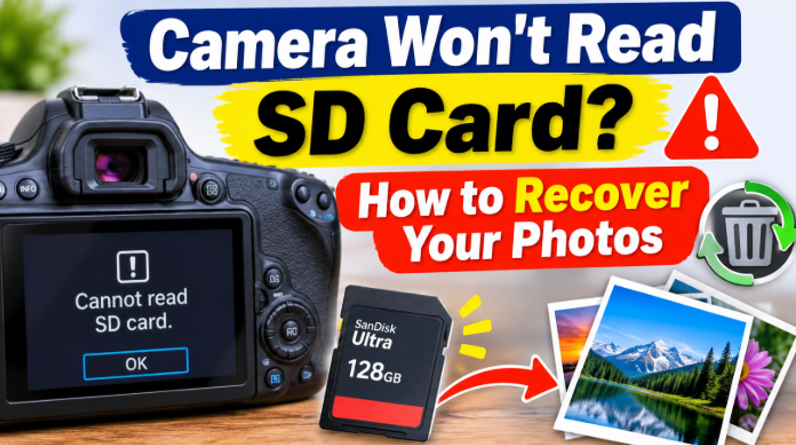

Few moments are as alarming as a camera refusing to read its SD card. The card that held your shoot suddenly shows “card error,” “cannot read card,” or simply nothing – and the photos feel locked away. Before you panic or reformat, know this: a card the camera will not read is often full of perfectly intact photos.
Here is how to troubleshoot the card and recover your photos.
Why a Camera Stops Reading an SD Card
The camera failing to read a card does not mean the card is dead. Common causes:
- Dirty or oxidized contacts. Dust or corrosion on the card’s gold contacts interrupts the connection.
- Damaged file system. An interrupted write or unsafe ejection left the card’s index inconsistent – the camera refuses to mount it.
- Card reader failure. The camera’s own card slot can be the problem, not the card.
- Logical corruption. The card’s file structure is damaged, but the photo data is intact.
- Physical damage. Less common, but possible – a cracked card or damaged contacts.
The key insight: a camera’s strict reader often rejects a card that a computer can still read at the raw level. Recovery starts by getting the card to a tool that does not need the file system to be perfect.
Step 1 – Try the Simple Fixes First
- Clean the contacts. Gently wipe the gold contacts with a soft, dry cloth.
- Reinsert the card. Power off the camera, reseat the card, and power back on.
- Try the card in another camera. If it reads there, the original camera’s slot may be the issue.
- Try a computer card reader. Many cards that fail in a camera read fine in a reader.
If the card still will not read anywhere, move to recovery.
Step 2 – Scan the Card with Recovery Software
A card the camera will not read can often be scanned directly by recovery software, which reads the raw data without requiring a healthy file system.
Wondershare Recoverit handles card reader troubleshooting and direct card scanning in one workflow. It is one module of the Recoverit recovery platform, so the same raw-scan engine works on cards, drives, and cameras alike.
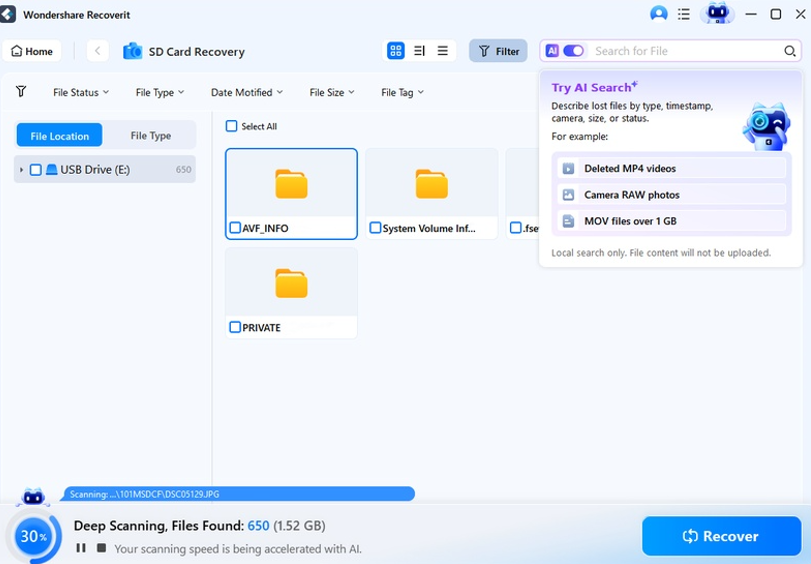
1. Connect the card to your computer with a card reader.
2. Launch Recoverit and look for the card in the device list – it may appear even if Windows or macOS does not fully mount it.
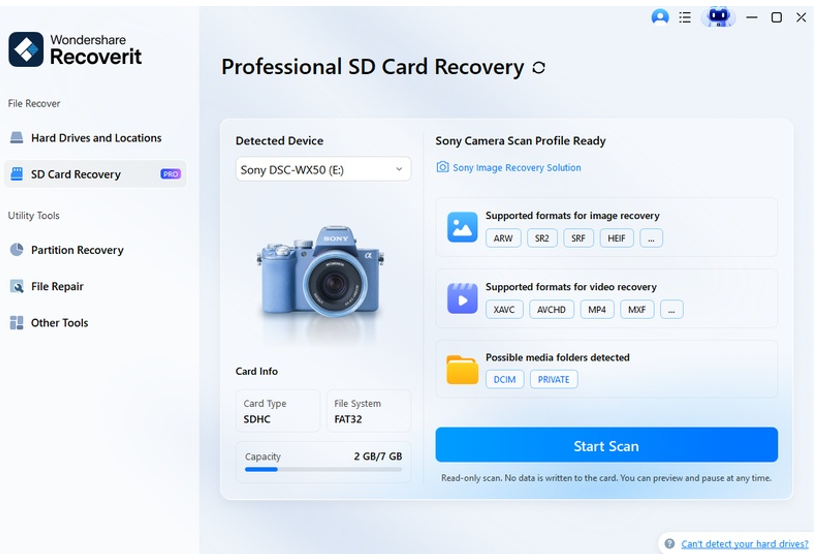
3. Select the card and click Scan. The tool reads the raw sectors and rebuilds your photos.
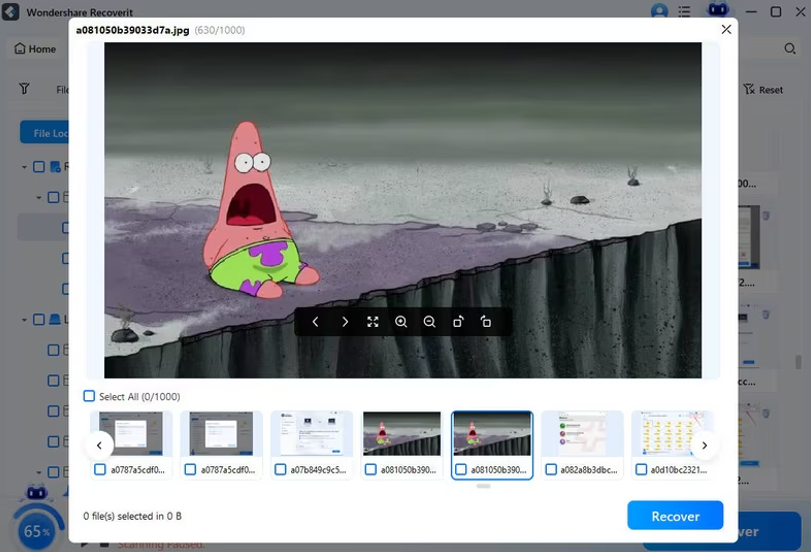
Step 3 – Preview and Recover
Filter by photo type and preview the images. Recoverit shows accurate thumbnails, so you can confirm your shoot is there. Select your photos and click Recover, saving them to a different drive than the card.
Why Direct Card Scanning Works
Recovery software does not need the file system to be perfect. It scans the raw sectors of the card, finds photo signatures, and rebuilds the files. Even when the camera’s strict reader rejects the card’s logical structure, the photos underneath are often completely intact.
This is also why the fix is not to keep reinserting the card in the camera. Every time the camera tries to mount the card and fails, it may write status or error data to the card – and that writing can land on top of the very photos you want. Once the camera has refused the card once or twice, stop trying it there and move to a card reader on a computer.
The memory card recovery feature is tuned for exactly this – cards that have logical damage but intact data.
What Does “Raw Scan” Mean?
A raw scan is the difference between recovery working and failing on an unreadable card. Normal file access asks the file system “what files are here?” – and a damaged file system answers nothing. A raw scan ignores the file system entirely:
- It reads the physical sectors of the card, one by one.
- It looks for known file signatures – JPEG starts with FF D8, and other formats have their own markers.
- It reconstructs files from those signatures, regardless of the broken index.
That is why a card with a completely corrupted file system can still yield hundreds of intact photos. The photos were never damaged – the map to them was.
When NOT to Reformat
The one thing to avoid: reformatting the card in the camera “to make it work again.” A format clears the index and can destroy the very data you are trying to recover. If the camera prompts you to format, decline – pull the card and scan it on a computer first.
See also: Tech Waste Recycling: A Comprehensive Guide to Sustainable IT Disposal
If the Card Is Physically Damaged
If the card is cracked, bent, or has damaged contacts, stop forcing it into readers. A physically damaged card needs professional recovery with specialized tools. For a wedding or client shoot, the cost is often worth it.
Preventing Card Read Failures
- Eject properly. Power off the camera before removing the card.
- Handle cards by the edges. Finger oils and dirt cause contact problems.
- Use quality cards. Reputable brands fail less often.
- Back up after every shoot. A card error matters less when photos live in two places.
- Reformat cards periodically in-camera. Fresh indexes prevent logical corruption.
Conclusion
A camera that will not read an SD card is alarming – but the photos are usually still on the card. Clean the contacts, try a reader, and scan the card directly with recovery software that reads raw data. With Wondershare Recoverit, you can fix and recover from a camera SD card error in three steps: connect, scan, preview. Do not reformat – recover. Your shoot is still on that card, and it is worth getting back.