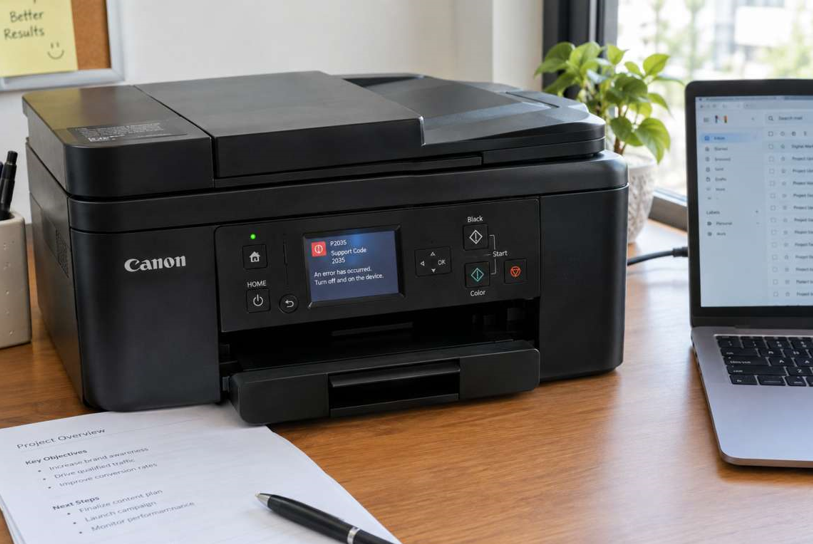

You send a document to print, and instead of pages you get a strange message like “Error E05” or “Support Code 5100.” It looks technical and a little alarming, but Canon error codes are simply the printer’s way of telling you what’s wrong. Once you know how to read them, many can be fixed in a few minutes.
This guide explains the most common Canon printer error codes in plain English, what usually causes them, and what you can safely try before calling anyone. Codes vary slightly between models (PIXMA, imageCLASS, MAXIFY), so always check your printer’s manual or Canon’s support site for your exact model.
How Canon Error Codes Work
Canon printers usually show errors in two ways:
- “E” codes (like E02 or E05) appear on the printer’s small display, or as a number of blinking lights on models without a screen.
- Support codes (four-digit numbers like 5100 or 1300) appear on your computer screen or in the printer’s status window.
In both cases, the code points to a category of problem: paper, cartridge, ink or toner, or internal hardware. Knowing the category tells you where to look first.
Paper-Related Error Codes
E02: Paper Not Detected
The printer can’t find paper in the tray. Check that paper is loaded, aligned with the guides and not overfilled. Fan the sheets and reload. If it still complains, dust on the paper feed rollers may be the cause.
E03 and 1300: Paper Jam
Both usually mean a sheet is stuck in the paper path. Turn off the printer, open the rear and front covers, and pull the paper out slowly, in the direction of travel. Check for small torn scraps, since even a tiny piece can trigger the error again.
6000: Paper Feed Problem
This can appear when the paper isn’t feeding properly or something is blocking the path. Remove any paper, check for obstructions, and reload with fresh, dry sheets.
Cartridge and Ink or Toner Error Codes
E04 and E05: Cartridge Not Recognized or Installed Correctly
These errors mean the printer can’t detect the cartridge. Common causes are a cartridge that isn’t fully clicked into place, dirty electrical contacts, or the wrong model.
Try this:
- Turn the printer off, then open the cartridge cover.
- Remove the cartridge and check it for damage.
- Wipe the metal contacts gently with a dry, lint-free cloth.
- Reinsert it firmly until it clicks, then restart the printer.
E13, E14 and E16: Ink or Toner Level Problems
These codes generally relate to low or empty cartridges, or a printer that can’t read the remaining level. Replacing the cartridge often clears them. Always match the cartridge to your exact printer model, as mismatched or poor-quality cartridges are a common reason for repeat errors.
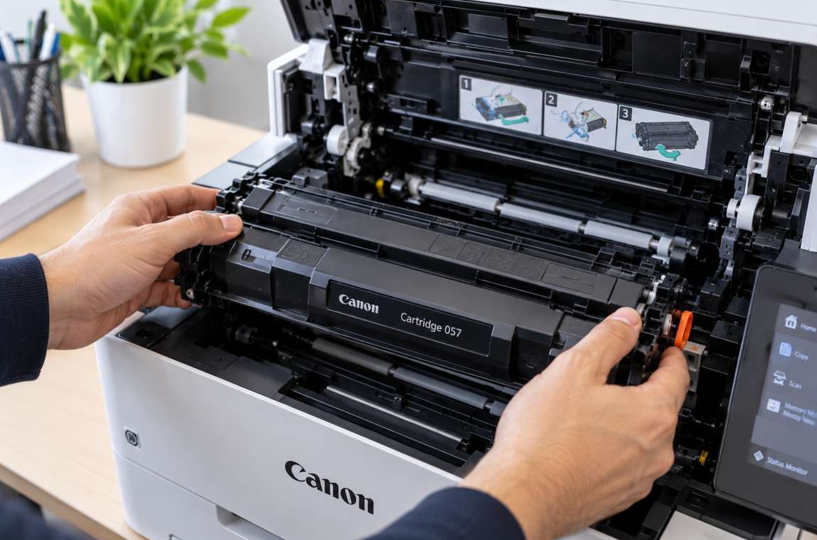
Using genuine, correctly matched Canon toner cartridges reduces recognition errors, protects print quality and avoids many of these warnings in the first place. Cheap, unbranded cartridges are one of the most common causes of repeated cartridge errors.
Hardware and Internal Error Codes
5100: Carriage Movement Blocked
This suggests the print carriage can’t move freely. A stray piece of paper, packing material or a foreign object is often the cause. Switch off the printer, open the cover, carefully remove any obstruction, and restart.
5200 and B200: Serious Internal Errors
These point to problems inside the printer, such as the print head or internal components. Turn the printer off, unplug it for a few minutes, plug it in and try again. If the code returns, it usually means a hardware fault that can’t be fixed with settings.
E08 and 1700: Waste Ink Absorber Full (Inkjet Models)
Inkjet printers collect waste ink in an internal absorber during cleaning cycles. When it’s nearly full, the printer alerts you. This needs a proper reset or replacement by a technician, so don’t ignore it or keep pressing through the warning.
See also: Tech Waste Recycling: A Comprehensive Guide to Sustainable IT Disposal
Quick Troubleshooting Steps for Any Error Code
If you’re unsure what a code means, this routine works for many problems:
- Note the exact code, or take a photo of it.
- Turn off the printer and unplug it for about a minute.
- Check for jammed paper, obstructions and loose cartridges.
- Reinstall the cartridge and make sure the covers are fully closed.
- Restart and print a test page.
How to Avoid Canon Error Codes
- Use quality paper and store it somewhere dry.
- Don’t overfill the paper tray.
- Replace cartridges promptly instead of running them completely empty.
- Keep the printer clean and dust-free.
- Turn the printer off properly using the power button, not at the wall.
- Update drivers and firmware regularly.
When Should You Call a Professional?
Some codes are a sign of a real fault, and repeating the same fix won’t help. It’s time for expert help if:
- The same error returns after a restart and a clean
- You see codes like 5200 or B200 that never clear
- The printer makes grinding or clicking noises
- You smell burning or notice overheating
- The waste ink absorber warning appears
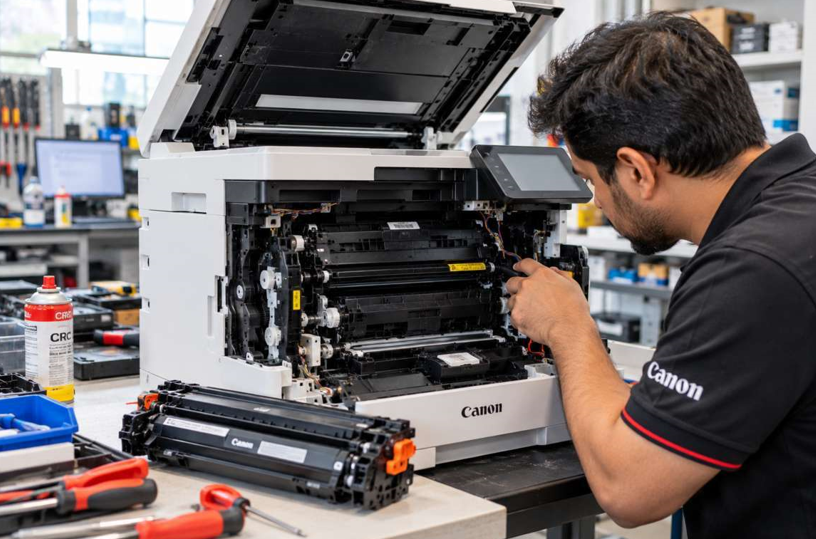
Opening a printer without training can damage delicate parts and turn a small repair into an expensive one. A trusted Canon printer repair in Dubai service can read the fault properly, replace the failing part and often get you printing again faster than buying a new machine.
Final Thoughts
Canon printer error codes look intimidating, but most fall into a few simple groups: paper, cartridges, ink or toner, and hardware. Start with the easy checks, keep your printer clean, and use the right cartridges. If a code refuses to go away, that’s your cue to get professional help rather than struggling on.